Webserver tutorial
The ViennaPTM webserver guides you through three stages: submitting a protein structure,
choosing post-translational modifications (PTMs) residue by residue, and downloading the
prepared output. This page walks through each step with screenshots from a typical run using
the villin headpiece structure 1VII as an example.
No account or installation is required — start from the home page and click Continue when you are ready to proceed. For scripted or batch workflows, see the Backend documentation instead.
Step 1 — Submit a structure
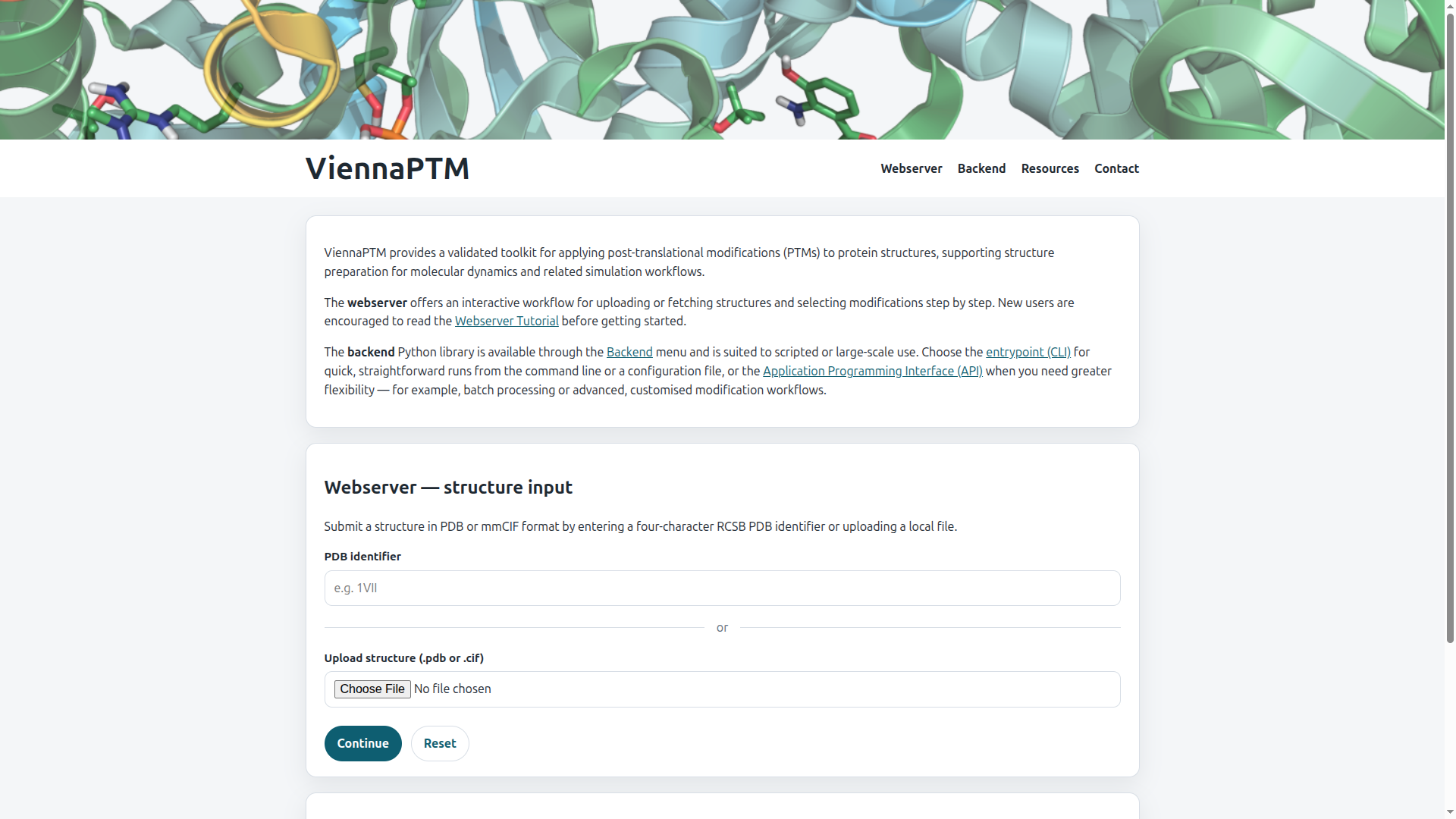
On the home page, provide your input structure in one of two ways:
-
PDB identifier — enter a four-character RCSB PDB code (e.g.
1VII). ViennaPTM fetches the coordinates automatically. -
File upload — choose a local
.pdbor.ciffile from your computer. Use this option for unpublished structures or custom models.
Click Continue to load the structure. ViennaPTM parses the file, identifies modifiable residues supported by the parameter library, and opens the modification picker. If the identifier is invalid or the file cannot be read, an error message is shown on this page.
Step 2 — Choose modifications
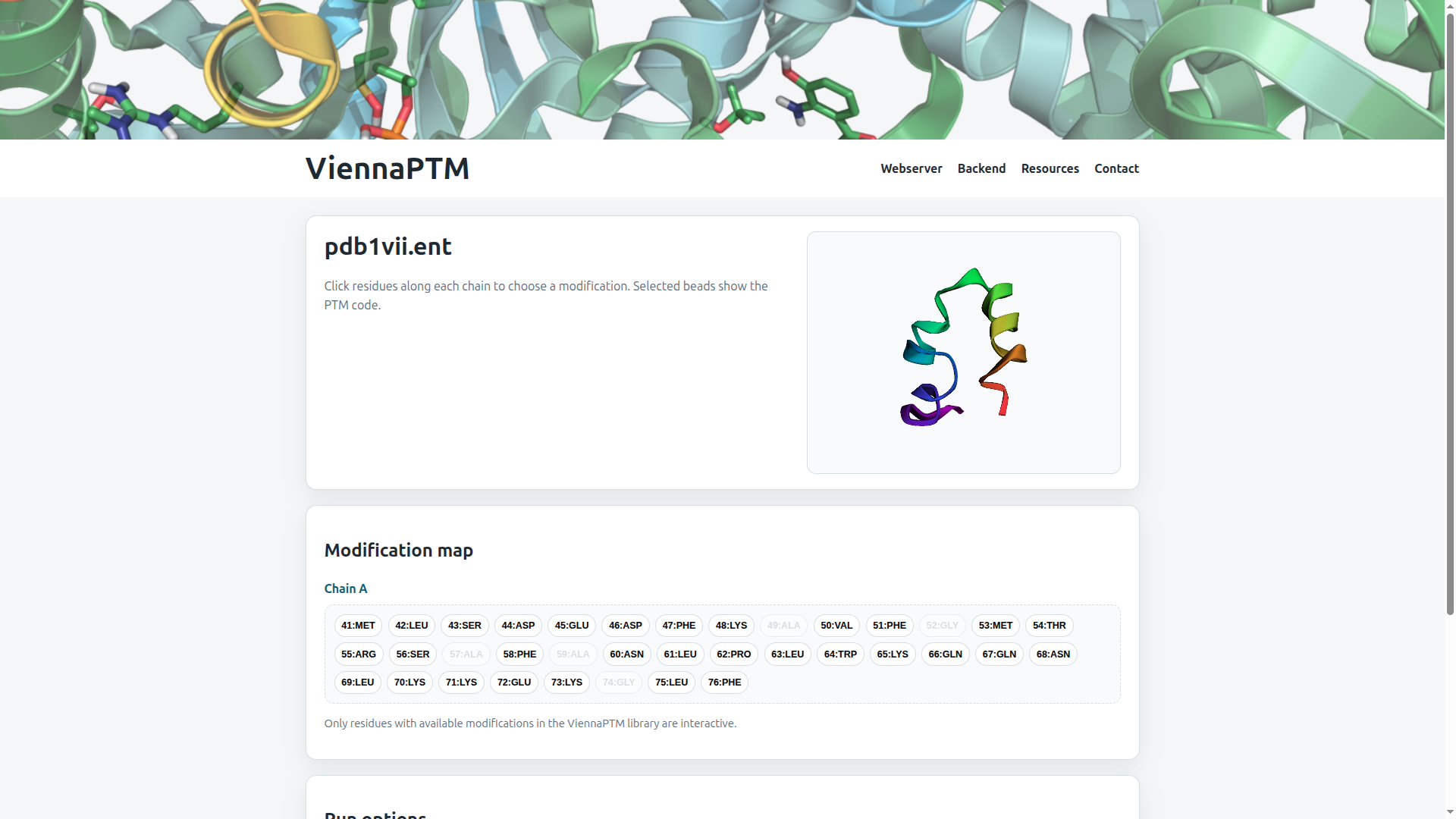
The modification page shows your structure name, an interactive 3D preview, and a
modification map — a bead-on-a-string view of each protein chain. Each bead
corresponds to one residue and is labelled with its sequence number and three-letter code
(e.g. 48:LYS).
- Interactive beads (dark text) can be modified. ViennaPTM only enables residues for which validated PTM parameters exist in the library.
- Inactive beads (greyed out) have no supported modifications — typically glycine and alanine, or residues without parameter entries.
-
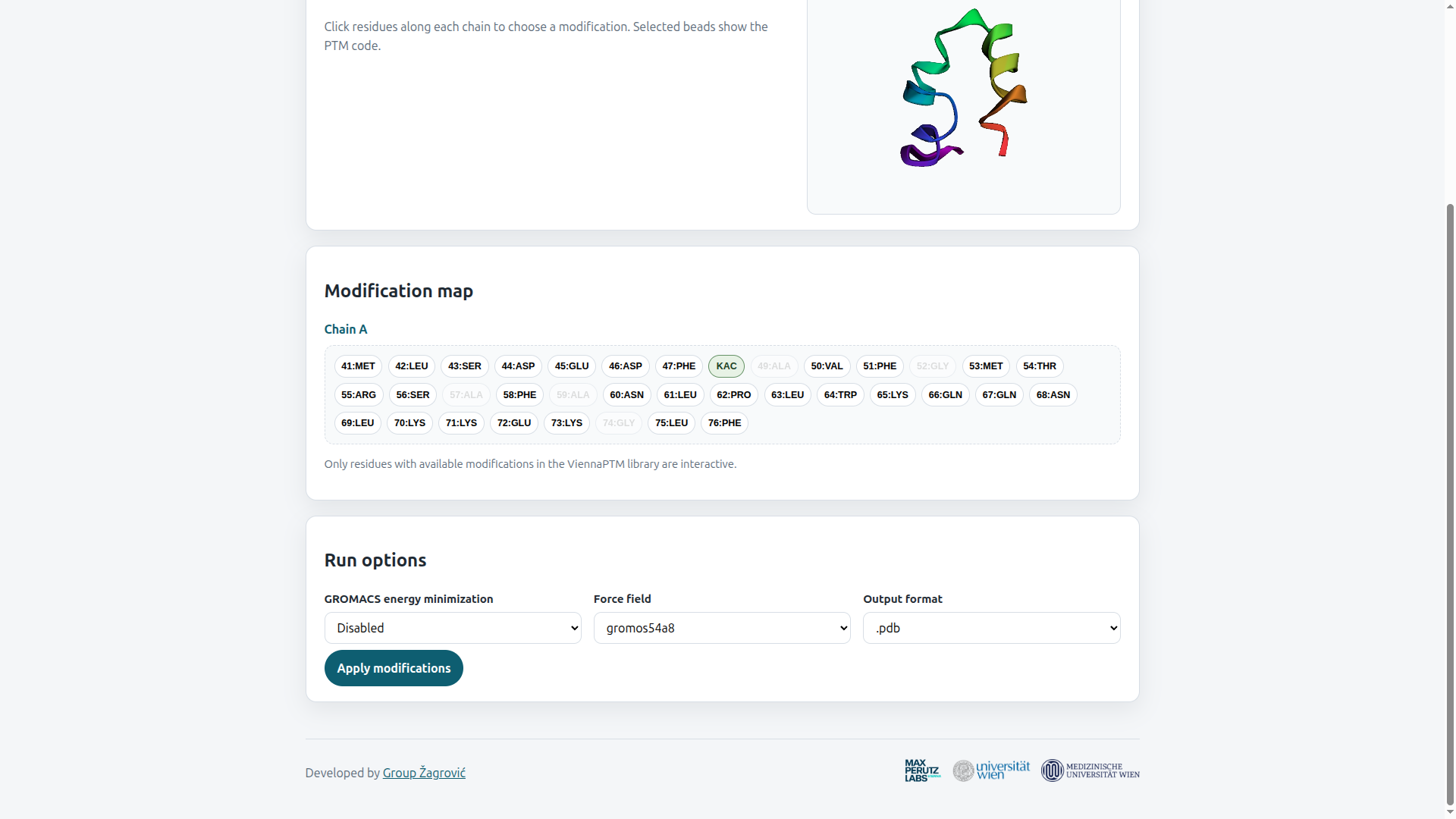
After you assign a PTM, the bead label changes to the modification code (e.g.
KACfor N-acetyllysine) and is highlighted in green.
Use the 3D viewer on the right to orient yourself in the structure. You can rotate and zoom the cartoon representation while selecting residues.
Modification overlay
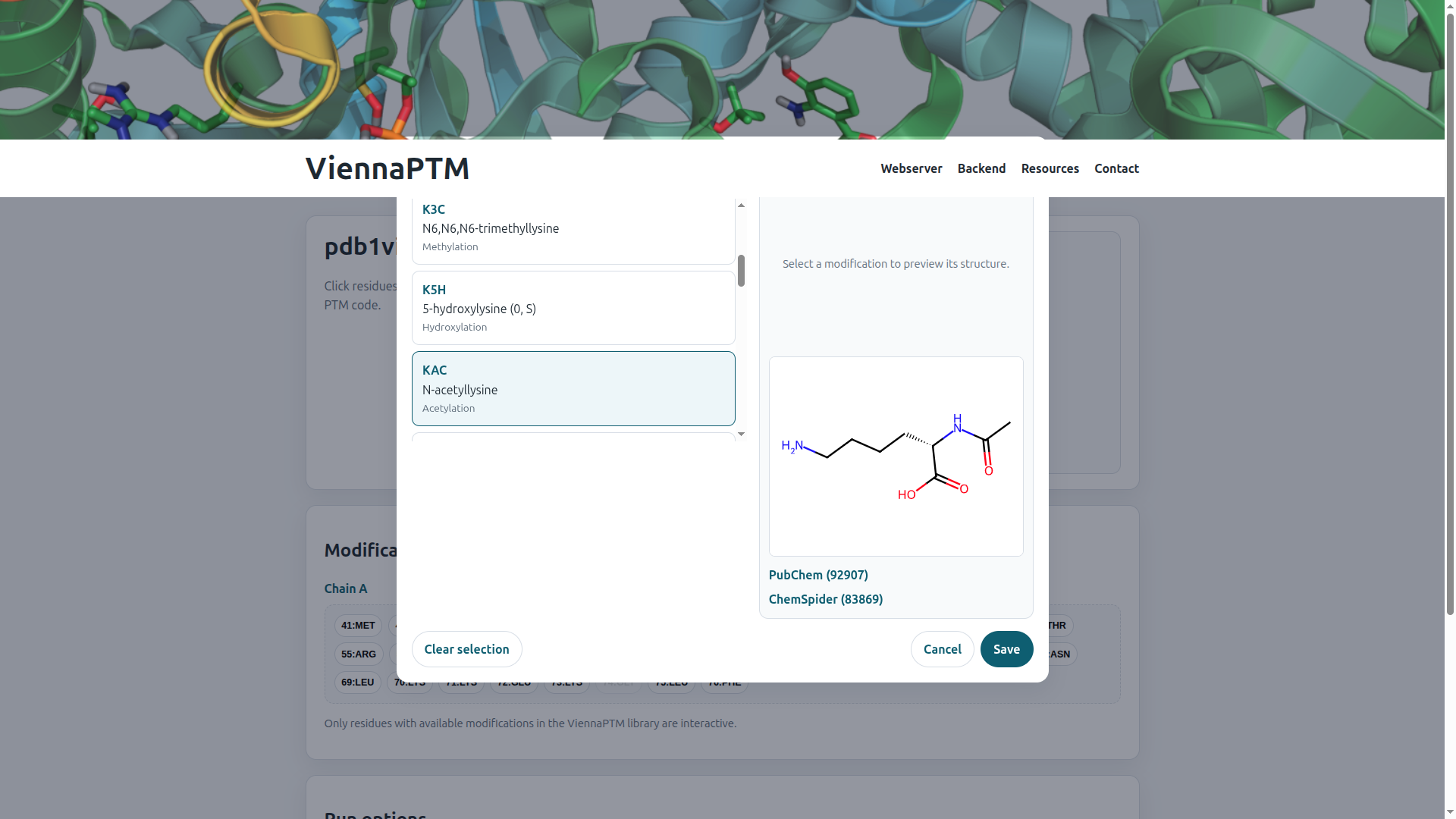
Clicking a modifiable bead opens an overlay listing every PTM available for that residue type. For each option you see:
- The parameter code used in output files (e.g.
KAC) - The full chemical name and modification category (acetylation, phosphorylation, …)
- A 2D structure preview rendered from the underlying SMILES representation
- Links to PubChem and ChemSpider database entries where available
Select a modification from the list to preview it on the right. The overlay stays open so you can compare options — click Save to confirm your choice, or Cancel to discard changes for that residue. Use Clear selection to remove a previously assigned PTM without closing the overlay.
Repeat for as many residues as needed. You can modify multiple chains in a single session. There is no limit on the number of PTMs per structure, but each residue accepts at most one modification at a time.
Step 3 — Configure run options
Once your modifications are assigned, scroll to the Run options section at the bottom of the page:
- GROMACS energy minimization — optionally relax the modified structure with a short steepest-descent minimization in GROMACS. Enable this when preparing structures for molecular dynamics; leave disabled for a faster run that only applies the chemical changes.
-
Force field — choose the GROMOS parameter set:
gromos45a3,gromos54a7, orgromos54a8(default). The force field must match the PTM parameters used in your downstream simulation. See Resources → Parameters for details and downloads. -
Output format — download the modified coordinates as
.pdbor.cif(mmCIF).
Click Apply modifications to run ViennaPTM. Processing typically completes within seconds; larger structures or enabled minimization may take longer.
Step 4 — Review and download results
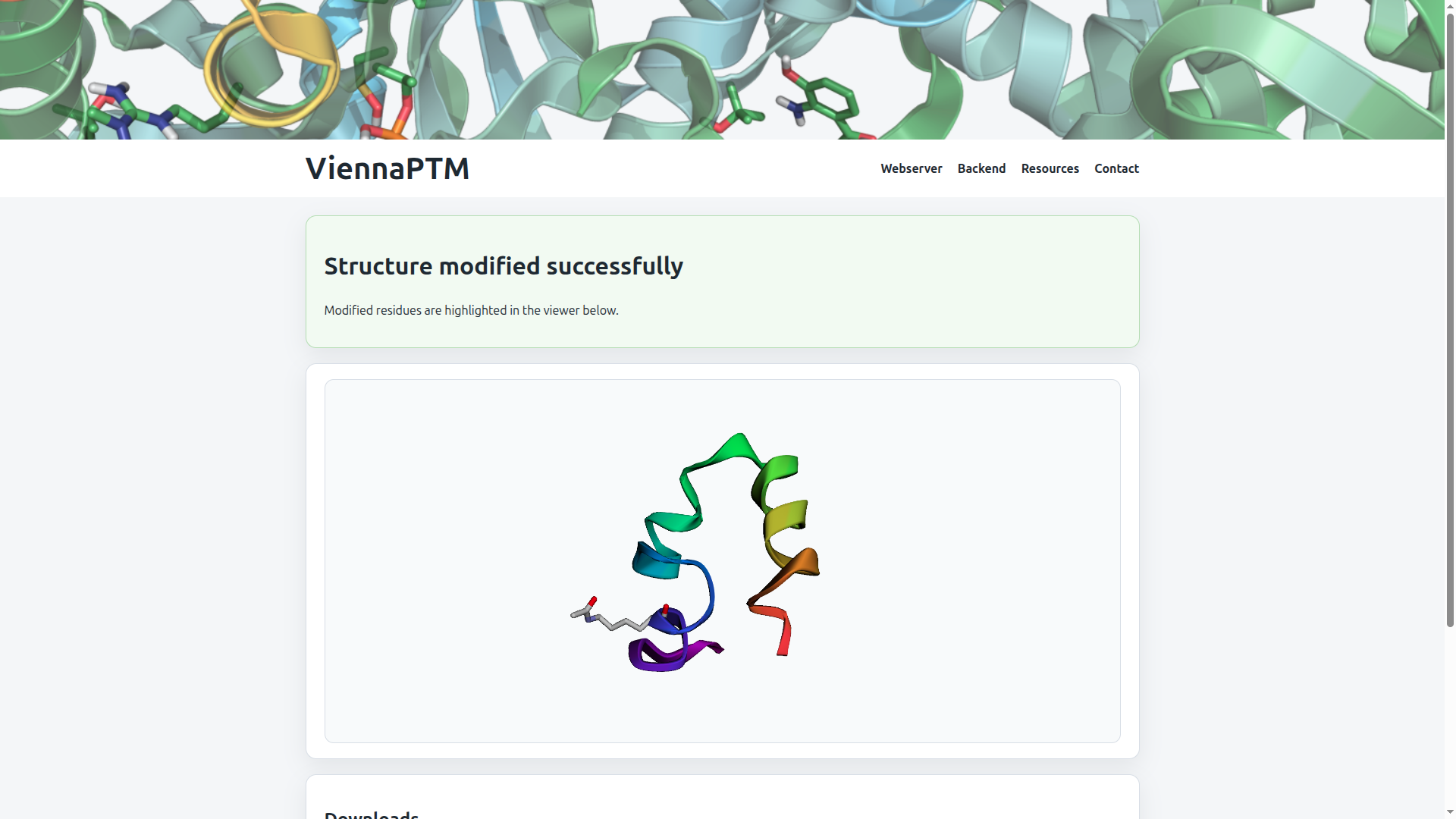
When processing finishes, the results page confirms success and displays the modified structure in the 3D viewer. Modified residues are highlighted with a stick representation so you can inspect the changed side chain in context.
Two download options are available:
-
Download modified structure — the prepared coordinate file in your chosen
format (
.pdbor.cif). - Download ZIP archive — the structure file together with a log of applied modifications and, when minimization was enabled, GROMACS output files.
Session files are stored temporarily on the server (up to 2 hours). Use Delete now on the results page to remove your data immediately when you are finished. Starting a new job from the home page creates a fresh session.
Further reading
-
PTM parameters
GROMOS force-field parameters for modified amino acids used by the webserver minimization step and for molecular dynamics simulations.
Resources → Parameters -
Publications
Citation information for ViennaPTM and the underlying parameter sets.
Resources → Papers -
Backend & API
Command-line entrypoint and Python API for batch processing, custom workflows, and integration into pipelines.
Backend overview